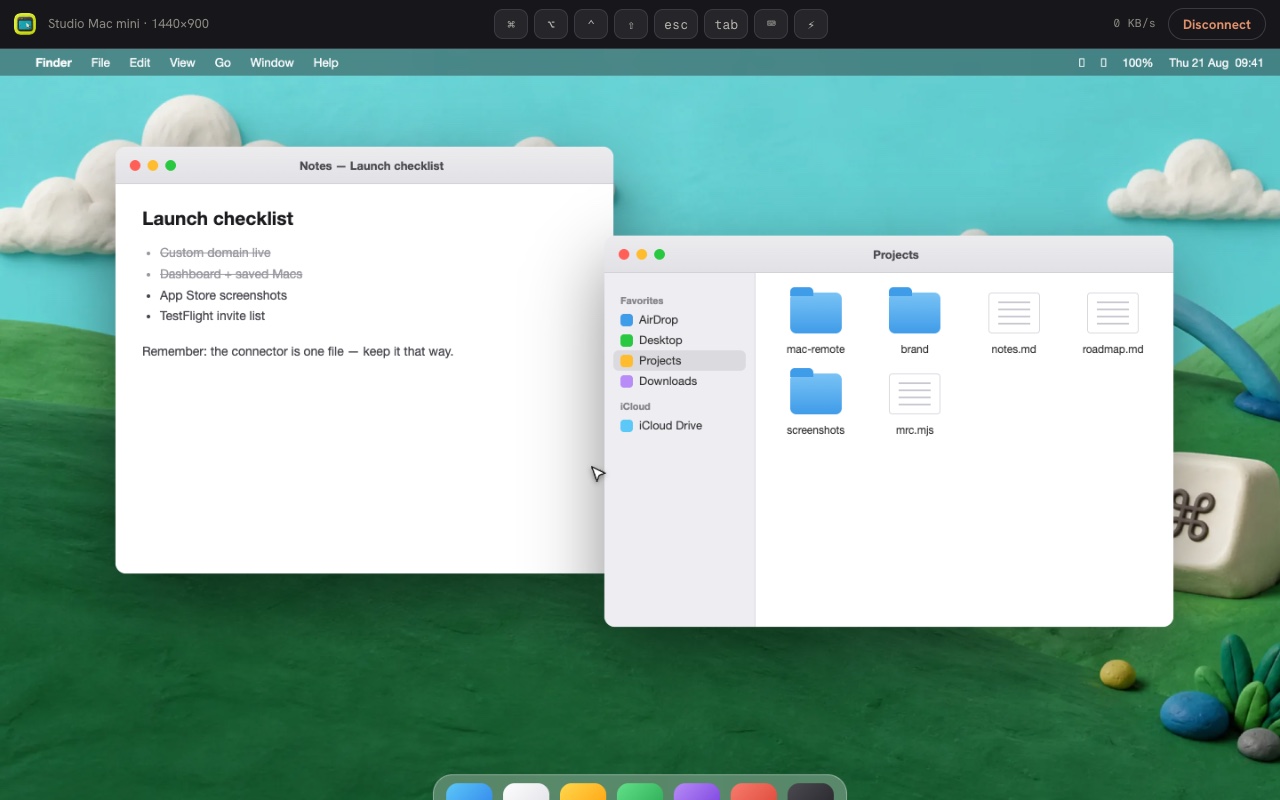
What Mac screen sharing actually is
Every Mac ships with a Screen Sharing service (System Settings → General → Sharing). Turn it on and the Mac serves its display over Apple's version of the VNC protocol, protected by your macOS username and password. Anything that speaks that protocol — another Mac, or a viewer like this one — can then see and control the screen.
How to screen share between two Macs
On the same network, you don't need anything extra: turn on Screen Sharing on the Mac you want to reach, then on the other Mac press ⌘K in Finder and connect to vnc://the-macs-name.local, or click the Mac in the Finder sidebar and choose Share Screen…. Sign in with the shared Mac's account and you're in.
Mac screen sharing over the internet
This is where the built-in tools stop: Finder's Share Screen can't cross your router's NAT, and forwarding port 5900 to the world is a bad idea. The fix is one command on the Mac:
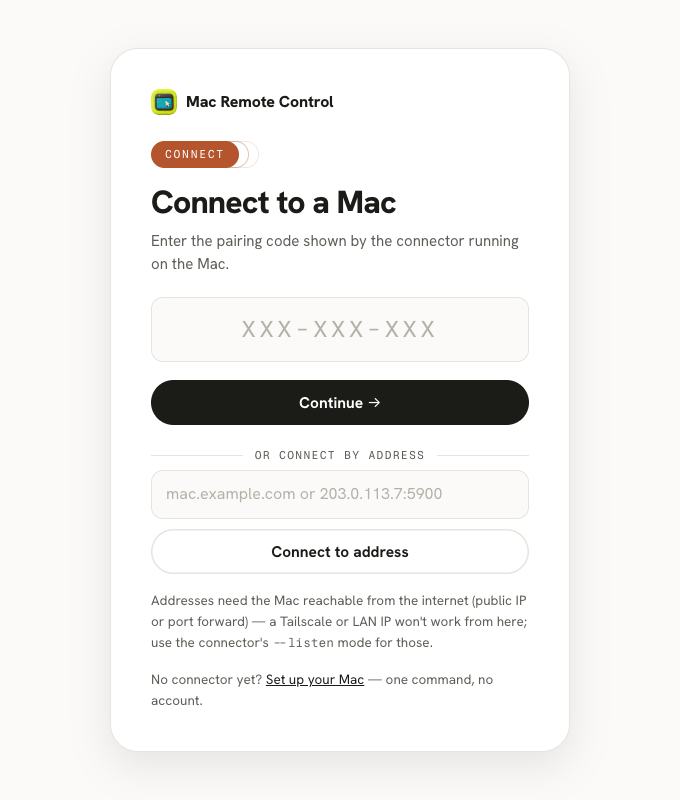
curl -fsSL https://macremotecontrol.com/connector.mjs -o mrc.mjs && node mrc.mjsThe connector dials out to a relay and prints a pairing code. On any device, anywhere, open the viewer, type the code, and sign in with the Mac's own credentials — encrypted end-to-end, with no port forwarding, no VPN, and no account. Here's exactly how it works.
From Windows, Chromebooks, and phones
Apple's Screen Sharing app only exists on Macs. The browser viewer is the same idea for everything else: it speaks Apple's protocol — including the ARD authentication generic VNC clients lack — straight from Windows, Chromebooks, and iPhones and iPads, with a native iOS and Android app on the way.
Screen sharing not working?
- Service off or user not allowed: System Settings → General → Sharing → Screen Sharing must be on, and your user in its allowed list.
- Remote Management conflict: if Remote Management is enabled, it replaces Screen Sharing — turn one off.
- Different networks: Finder's Share Screen only works on the local network. Across the internet, use the connector and a pairing code.
- Mac asleep: a sleeping Mac can't serve its screen — check Energy settings or "Prevent automatic sleeping" if you connect often.
Ready in about a minute: set up your Mac, or read the security model first — the relay only ever carries ciphertext.